
A customer searches for your business, sees the wrong hours and decides not to call. Another finds two listings and cannot tell which address is current. These are ordinary information problems with real consequences.
Google Business Profile, formerly Google My Business, helps eligible businesses manage their presence in Google Search and Maps. A useful setup starts with accurate ownership and business facts. Adding AI to the workflow does not change that responsibility.
Confirm eligibility and find the existing profile
Not every business is eligible for a profile. Check Google’s eligibility and ownership guidance for your situation before creating a listing, especially if you operate online only or use an address where customers do not meet you. Google: Business eligibility and ownership
Search for your business name, address and phone number. If a profile already exists, use the appropriate claim or access process rather than creating a duplicate. Identify the business-controlled account that should retain ownership.
Keep a record of who manages the profile. Use supported manager access for outside help instead of sharing the owner’s sign-in. A business profile should remain accessible when a vendor relationship or individual role changes.
Describe the business as it actually operates
Use the real business name, the most appropriate available category and accurate contact details. Do not add cities, service terms or promotional claims to the name simply to attract more searches.
Choose location and service-area settings based on how you serve customers. If customers do not visit your address, review the applicable guidance before displaying it. A service area is a statement about where you work, not a guarantee that you will appear for every search in that area.
Link to your functioning website. Do not follow old tutorials promising a free website generated from Business Profile information. Check the current features offered in your own profile; categories and regions can have different options.
Complete the verification Google offers
Google determines the available verification methods. You cannot assume that phone, mail or instant verification will be offered just because a tutorial describes it. Follow the choices shown for the profile and prepare legitimate evidence if requested. Google: Verify your business
For video-based verification, review the exact instructions before recording. Think through how to show the real location, business activity and authorized management without exposing private customer information. Do not generate, edit or stage false evidence.
Keep verification codes private. If the process fails, review the specific issue and use the supported help route. Creating another profile to avoid a verification problem can leave you with a more confusing record.
Finish the information a customer needs
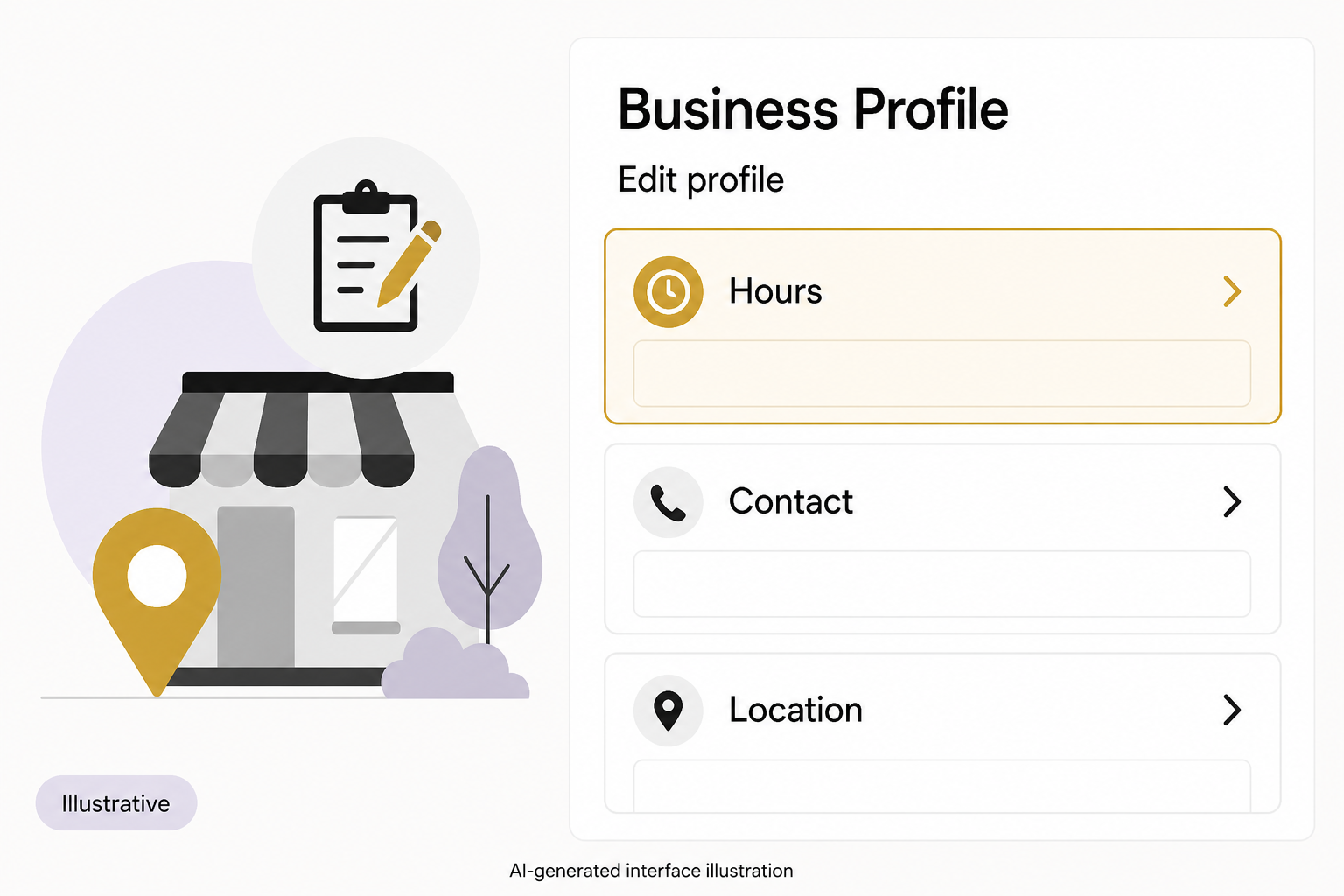
- Regular hours and holiday exceptions.
- Accurate website and contact destinations.
- Services or products genuinely available.
- Relevant attributes that truthfully describe the business.
- Current photos showing the real location, work or products.
- A concise description that explains the offer without unsupported claims.
Open the public listing after changes. Check it as a customer would, including website links and calling options. An accepted edit in an admin screen is not the same as a verified public experience.
Keep a short source sheet for the facts that change: approved hours, service area, active offerings and contact information. That gives both people and tools something reliable to work from.
Use AI to find inconsistencies, not create facts
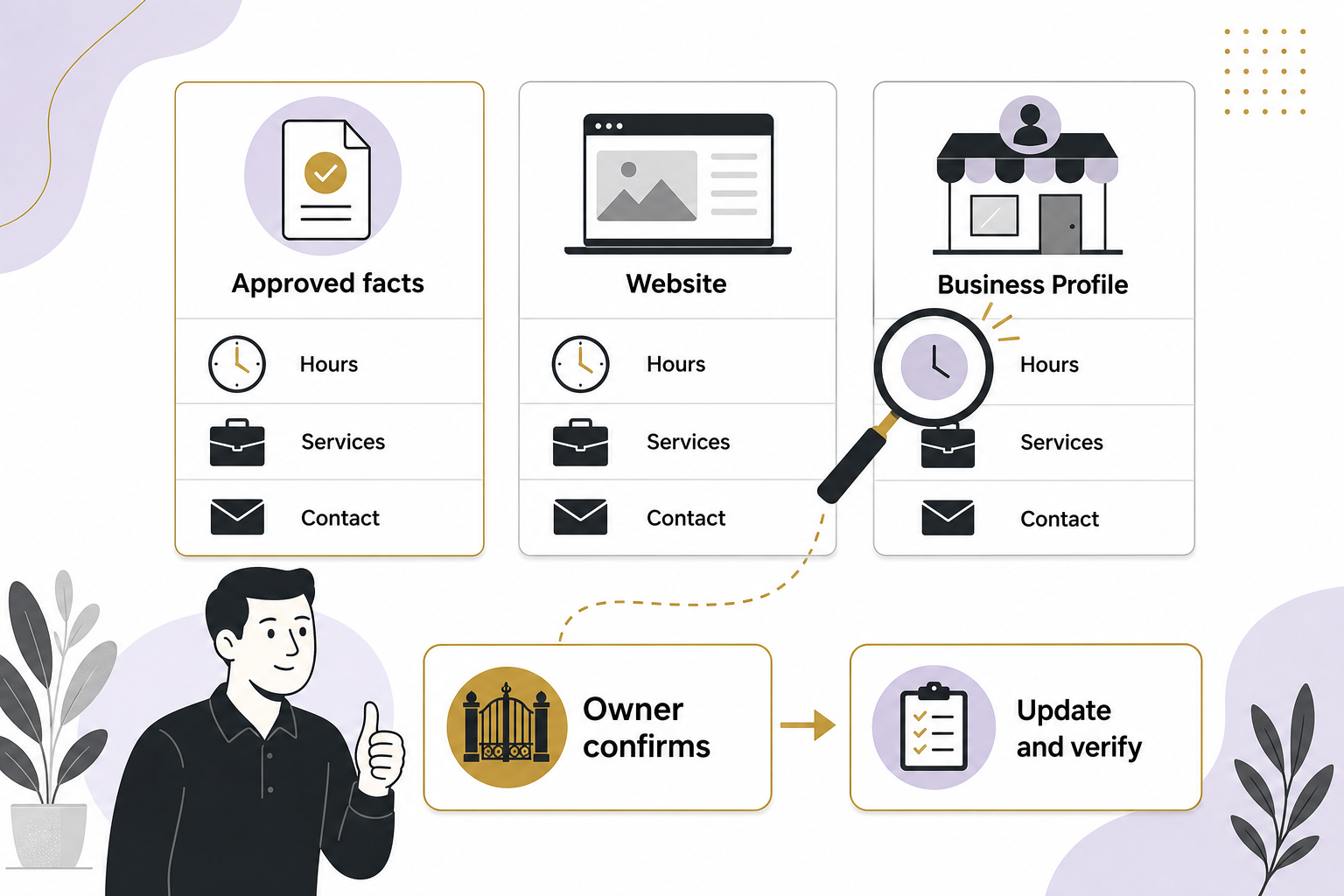
Give an approved assistant the public profile details and approved website information. Ask it to compare hours, services and contact references, then flag conflicts with the exact source for each one. Have the business owner resolve discrepancies before editing.
AI can also propose a clearer description or organize recurring customer questions. Do not let it invent a category, attribute, award, location or service. A plausible detail can still be false, and the customer experiences the business rather than the model’s version of it.
As AI-assisted search presents business information in more ways, maintain clarity across the sources you control. This is sound information maintenance, not a promise that a particular assistant will recommend you.
A hypothetical example
A repair shop changes its Saturday hours. Its website is updated, but the profile and an old service page disagree. An assistant can flag the conflict. The owner confirms the new schedule, updates the relevant records and checks the public listing. The task is complete when customers see consistent facts.
Build a steady maintenance routine
Review changes, customer feedback and profile accuracy on a regular schedule and whenever the business changes. Ask for genuine reviews without incentives or attempts to control the rating; Google’s policies prohibit those manipulations. Google Maps: Prohibited and restricted content
Use the performance information available in your profile as context. Website clicks and call interactions are not automatically qualified customers. Pair them with actual inquiries and business outcomes before drawing conclusions.
If your listing needs an ownership and accuracy review, start with an Eastmoor Digital discovery call.
Sources & further reading
Primary references checked for this refresh. Availability and platform behavior may change.
- Google: Verify your businessChecked 2026-08-31
- Google: Business eligibility and ownershipChecked 2026-08-31
- Google Maps: Prohibited and restricted contentChecked 2026-08-31